

The Automations Wall
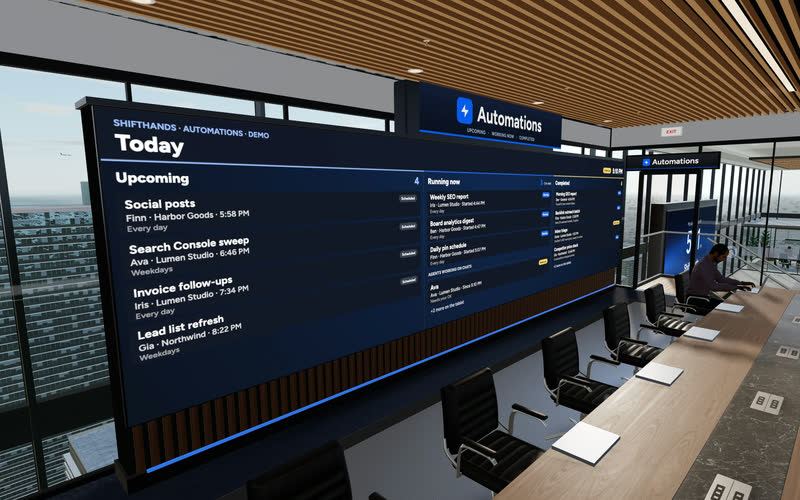
A big screen shows today’s Upcoming, Running now and Completed automations. Step up to the tablet to take a closer look at any run.
ShiftHands gives your AI agent team a Chief of Staff. Ask it to check on projects, coordinate work across agents, save standing rules and bring ideas or decisions back for your review. Your agents run on your own Apple-silicon Mac, and you can reach your Chief of Staff from the Mac app or a phone browser.
ShiftHands is a Mac app for running and supervising a team of AI agents. The agents run on your own Apple-silicon Mac; you can monitor their work, chat with them and respond to flagged command approvals from the Mac app or a desktop or phone browser.
A Chief of Staff keeps a team pointed at the right work. In ShiftHands, that team is your agents. Here are five jobs to give it.
“Which agents are working, and who needs me?”
You review: Current agent states and outstanding requests.
“Ask the Research Assistant and Content Assistant for progress on this launch.”
You review: Agent updates and any actions that need your authorisation.
“From now on, ask agents to include source links in research reports.”
You review: The saved instruction, then how agents handle their next tasks.
“Show me the new ideas for our product launch.”
You review: Strategy Whiteboard suggestions and any drafts you ask for.
“Check which automations need attention and help me resolve the problem.”
You review: Run status, a diagnosis and a proposed correction.
These are illustrative instructions based on documented features, not tested prompts or measured outcomes. Your Chief of Staff can only use the agents, files and tools in your workspace.
Building the team first? See AI agents for startups.
See it working
This is the real ShiftHands app with demo data. Open the Chief of Staff chat, check an agent’s progress, or open the Automations tab for scheduled runs and their result cards.
Recorded in the ShiftHands demo workspace.
Virtual Environment
Every ShiftHands plan, Free included, comes with the Virtual Environment: a 3D office in the app where your agents work at their desks, grouped by project. Walk over, pull up a chair, and watch your crew get it done.

A big screen shows today’s Upcoming, Running now and Completed automations. Step up to the tablet to take a closer look at any run.
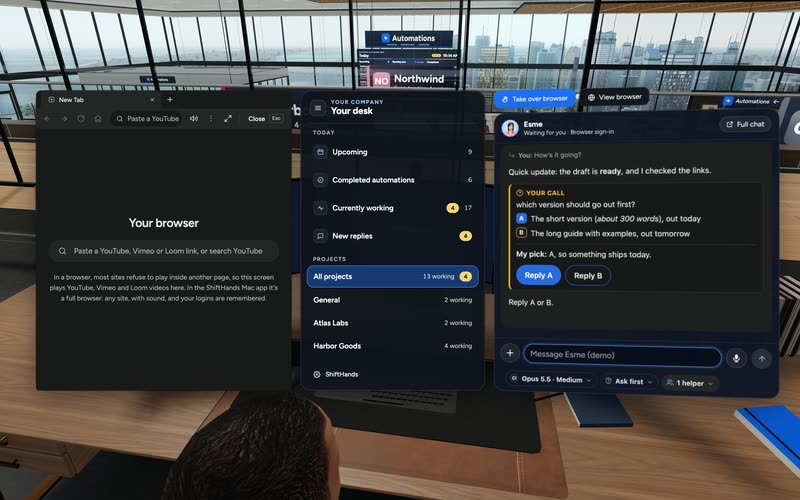
Sit down to see every project and every agent at a glance, and chat with anyone without leaving your chair.
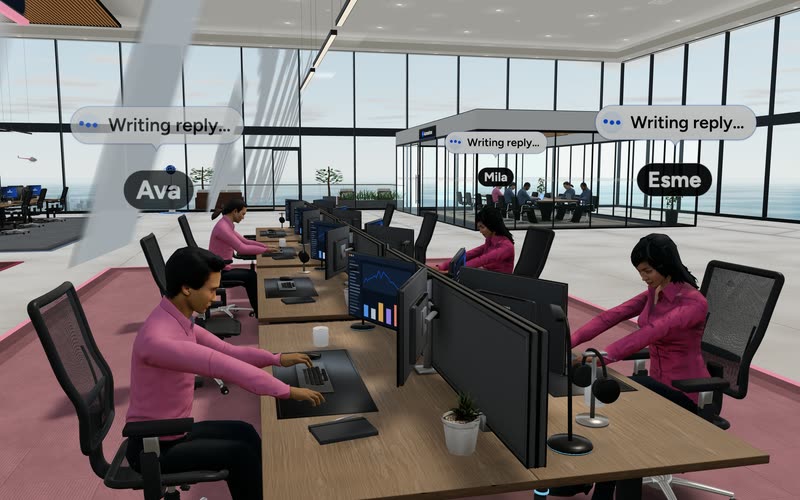
Every agent has a desk in its project area. Agents running an automation head to the Automations room. Walk up to any agent and chat.
Rendered in the ShiftHands demo workspace with made-up names. Open the Virtual Environment from the sidebar or from Chief of Staff in the app. Agents still run on your Mac and use your connected AI accounts.
Team coordination
Each ShiftHands agent has its own chat, history and model. Your Chief of Staff sees the whole team, so you can ask one place what is happening instead of opening every chat.
It can message several agents at once, but only with your OK. You stay the one who decides what gets handed out.
Prefer to see every status on one screen? Use the ShiftHands AI agent dashboard.
Standing rules
Say “from now on, all agents…” and your Chief of Staff saves it as a standing rule. The instruction applies to agents in its scope, including new agents, and guides their chats and automations. Standing rules are instructions to AI models, not guaranteed enforcement.
You can see, edit, pause or delete each rule in Settings, under Standing rules. A rule can cover all agents, one project or named agents.
Strategy Whiteboard
Your Chief of Staff does rounds of the desks and writes fresh ideas for your projects on the Strategy Whiteboard every morning. It lives in the glass office in the 3D office.
Save an idea to your Idea Book, or choose Make it real for a draft you review first. Ideas are generated suggestions, not checked market research.
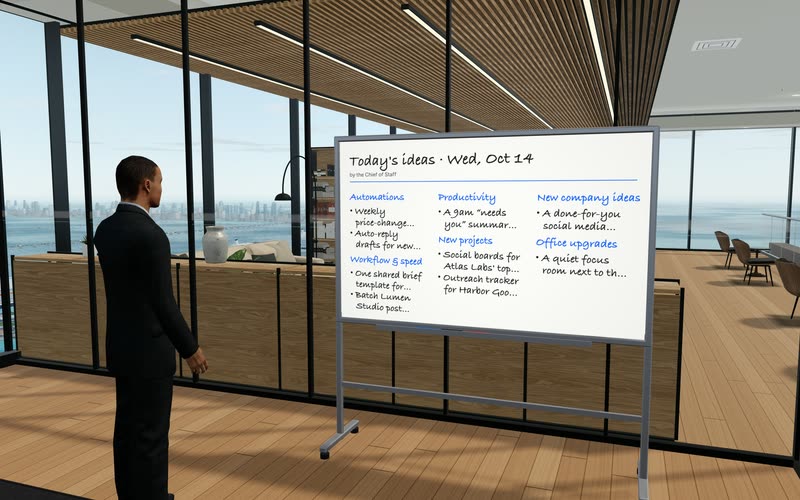
The Strategy Whiteboard in the ShiftHands demo office, with made-up projects.
Want the full tour of the building? See the AI agent office.
Reviews and decisions
Your Chief of Staff can help organise work across your ShiftHands agents, but it does not make every decision for you. Actions involving other agents may require your OK, and commands flagged under an agent’s settings wait for Allow once or Deny. Not every message, browser action or file change is automatically held for approval. Review important decisions and changes before acting on them.
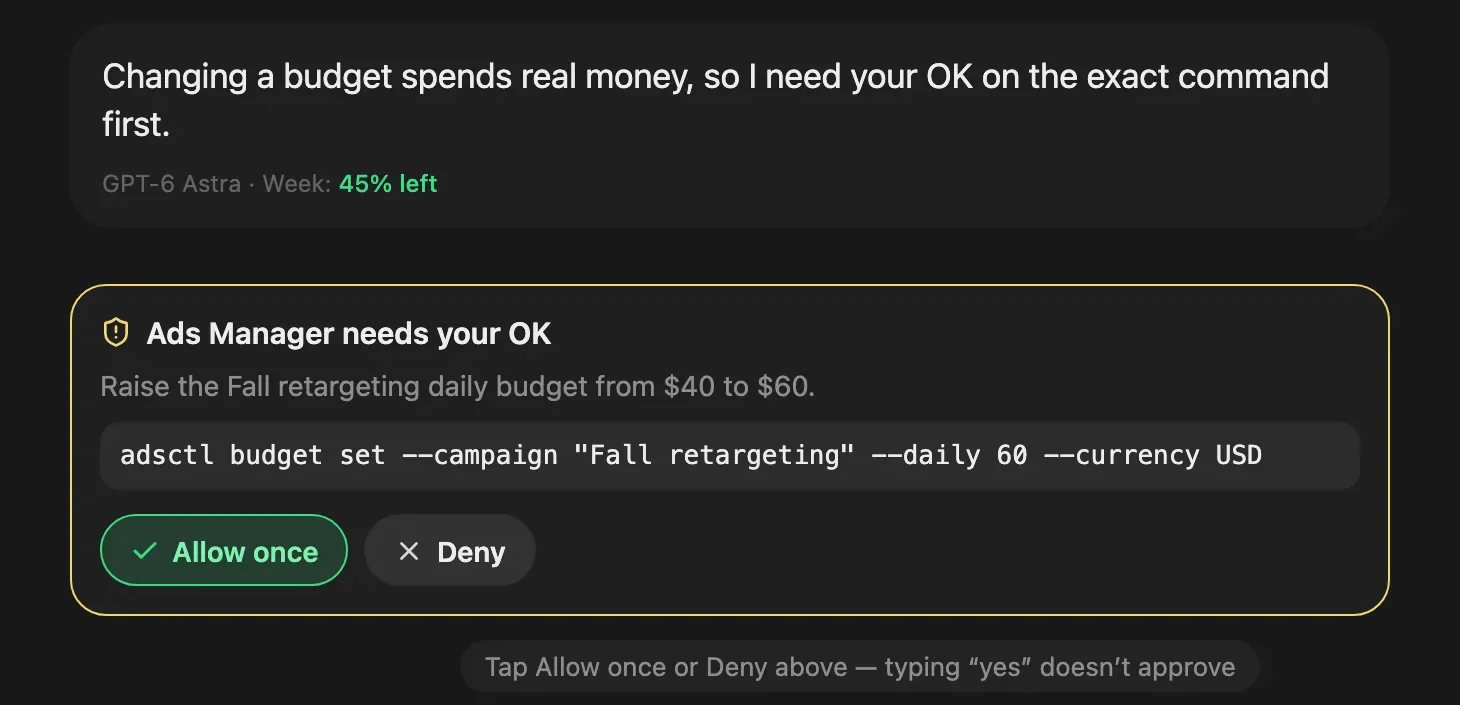
An approval card from the ShiftHands demo workspace, with made-up names.
Setting up recurring work for it to watch? Learn how to schedule AI agent tasks.
Away from your desk? You can manage AI agents from your phone browser while the Mac does the work.
Six steps. The Chief of Staff is built in, so there is nothing extra to buy or create.
Use a compatible Apple-silicon Mac. See where ShiftHands agents run.
Sign in with Claude or ChatGPT, or add a supported API key.
It’s built in and already in your workspace.
Ask it to check the current project or help create an agent.
Then watch how it shows up in your agents’ next tasks.
Check the next coordination action or whiteboard idea before adding more.
Browser work needs Ego Lite, a free agent browser from Citro Labs. It’s a separate macOS download.
It works inside your ShiftHands workspace. It isn’t an executive inbox or calendar assistant. Here is what is and isn’t in the box.
Included
Not included
An agent can only use accounts and tools you deliberately give it, such as a site you sign in to in its browser.
The Chief of Staff is included on both plans. Chatting with it uses your messages like any other agent chat.
25 messages a day, 1 project, 3 agents and 2 automations that run at most once a day.
No plan-level cap on messages, projects, agents or automations; fair use applies. Adds hourly and every-few-hours schedules.
Your connected provider’s pricing and limits apply. ShiftHands doesn’t sell model credits.
Agents, the Chief of Staff included, need an Apple-silicon Mac that stays on with ShiftHands open.
Full details: ShiftHands pricing.
It suits people who already run, or plan to run, several ShiftHands agents and want one place to steer them.
A good fit if
Look elsewhere if
An AI agent that keeps track of your other work and helps you organise it. In ShiftHands, it coordinates your agent team: checking progress, saving rules and bringing decisions back to you.
Check on work, set up projects and agents, message several agents with your OK, save standing rules, write morning ideas on the Strategy Whiteboard and help with broken automations.
Yes. It’s on Free and Pro. Chatting with it counts toward Free’s 25 messages a day.
Yes. Ask it to set up a project or an agent for a job. Free allows 1 project and 3 agents.
Yes, with your OK. It can message several agents at once once you agree. Each agent replies in its own chat.
Yes. Say “from now on, all agents…” and it saves a standing rule that new agents get too. Rules guide AI models; they are not a security guarantee, so check the work.
Every morning your Chief of Staff writes fresh ideas for each project. Save one to your Idea Book, or choose Make it real for a draft you review first.
When an automation breaks, it tells you and can help fix it. It won’t catch or repair every failure automatically.
Not natively. ShiftHands has no built-in inbox or calendar tools. An agent can only use accounts you deliberately give it, for example a site you sign in to in its browser.
Two ways. Open ShiftHands in your phone’s browser and chat with it there. Or, inside the 3D office, press P to text it on the virtual office phone. There is no native phone app, phone number or SMS.
No. Flagged commands wait for your Allow once or Deny, and typing “yes” in chat isn’t approval. Not every action is gated, so review important changes yourself.
No. It coordinates your AI agents. It doesn’t manage people, represent you or exercise a human executive’s judgement.
Yes. The Chief of Staff and your other agents run on your Apple-silicon Mac, which must stay on with ShiftHands open.
It’s included. Free is $0 with 25 messages a day. Pro is $49.99 a month or $499 a year. Your AI provider’s pricing applies on top.
Download the Mac app and ask your Chief of Staff to check one project or help you set up an agent.
Needs an Apple-silicon Mac (M1 or newer) with macOS 13 or later.
Screens and video come from the ShiftHands demo workspace with made-up names. Features and prices were checked on November 9, 2026 and can change.