

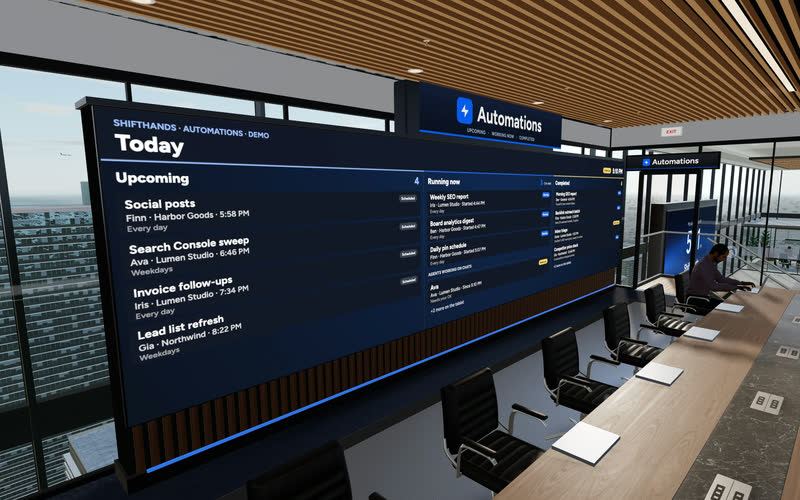
The Automations Wall
A big screen shows today’s Upcoming, Running now and Completed automations. Step up to the tablet to take a closer look at any run.
ShiftHands lets you schedule AI agents to handle recurring work on your Mac. Give an agent a daily or weekly task, and it runs on schedule, posts a result in its chat and shows you anything that needs review. Your Mac must stay on with ShiftHands open for work to run on time.
ShiftHands is a Mac app for running and supervising a team of AI agents. The agents run on your own Apple-silicon Mac; you can monitor their work, chat with them and respond to flagged command approvals from the Mac app or a desktop or phone browser.
Anything repeatable with a result you can check. Here is what the instructions look like and where the result lands.
“Sort my unread email, flag anything urgent and draft replies.”
Result: A digest and drafted replies in the agent’s chat.
“Check these five pricing pages and changelogs for changes.”
Result: What changed, with links to the sources.
Looking for a tool to handle recurring SEO research and reports? Our AI SEO agents comparison covers nine options for research, content work, automation and reporting.
Need a repeatable competitor watch instead of general scheduled work? Our AI agent for competitor monitoring guide shows how to check named websites, compare findings with earlier reports and review source-linked briefings.
“Load our main pages and report anything down or slow.”
Result: A status summary, with problems marked Needs review.
“Find new posts on this topic and summarise the useful ones.”
Result: Findings and suggested follow-up tasks.
These are illustrative set-ups, not tested results or accuracy guarantees. An agent can only use the accounts, tools and browser access you give it.
Want an agent to prepare social posts and research on a recurring schedule? Our AI agent for social media guide shows how to produce drafts, review the results and keep publishing decisions in your hands.
See it working
This is the real ShiftHands app. Open the Automations tab for scheduled jobs and their result cards; the other tabs show the chats, projects and browser those jobs use.
Recorded in the ShiftHands demo workspace.
Virtual Environment
Every ShiftHands plan, Free included, comes with the Virtual Environment: a 3D office in the app where your agents work at their desks, grouped by project. Walk over, pull up a chair, and watch your crew get it done.

A big screen shows today’s Upcoming, Running now and Completed automations. Step up to the tablet to take a closer look at any run.
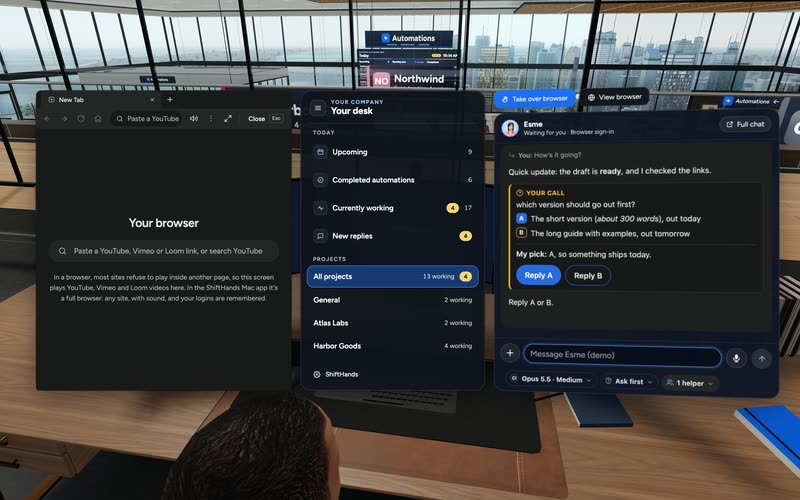
Sit down to see every project and every agent at a glance, and chat with anyone without leaving your chair.
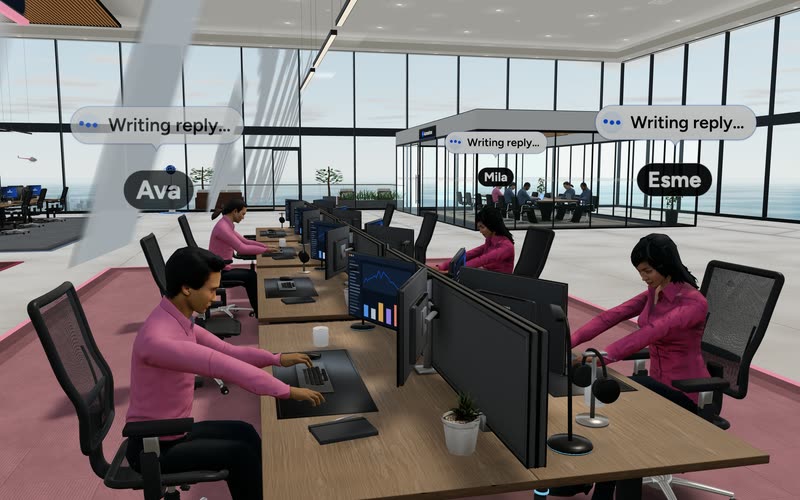
Every agent has a desk in its project area. Agents running an automation head to the Automations room. Walk up to any agent and chat.
Rendered in the ShiftHands demo workspace with made-up names. Open the Virtual Environment from the sidebar or from Chief of Staff in the app. Agents still run on your Mac and use your connected AI accounts.
A schedule belongs to an agent, so every run uses that agent’s project, model and settings.
Give an agent a task and choose when it runs. The time follows your account’s time zone.
At that time, the agent does the work on your Mac, using the model and tools you set up.
The run posts a result card in the agent’s chat, marked Done or Needs review.
Read the result, reply with a next step, or answer a flagged command if the agent asked.
Approval only comes up when a command is flagged under that agent’s settings. If a run fails or needs attention, check its status and result in Automations, then give the agent its next instruction.
New to running agents on your Mac? Start with our AI agent for Mac guide to set up your workspace, connect a model and create your first agent.
Six steps, all inside the Mac app.
Use an Apple-silicon Mac with macOS 13 or later. See where ShiftHands agents run.
Choose an existing agent or create one with a name and a one-line role.
In the agent’s automations, tap Add automation. Give it a name and fill in “What to do each time”.
Pick Daily, Weekdays, Weekly or One time and set the time. On Pro, Hourly and Every few hours are also available.
Decide whether “Ask before risky steps” stays on. If the job uses a browser, install Ego Lite first.
When it runs, find it in Automations and open its result card in the agent’s chat.
You can also ask your Chief of Staff in chat to create an automation for an agent.
Run results
The automations view lists what is coming up, what is running now and what has finished.
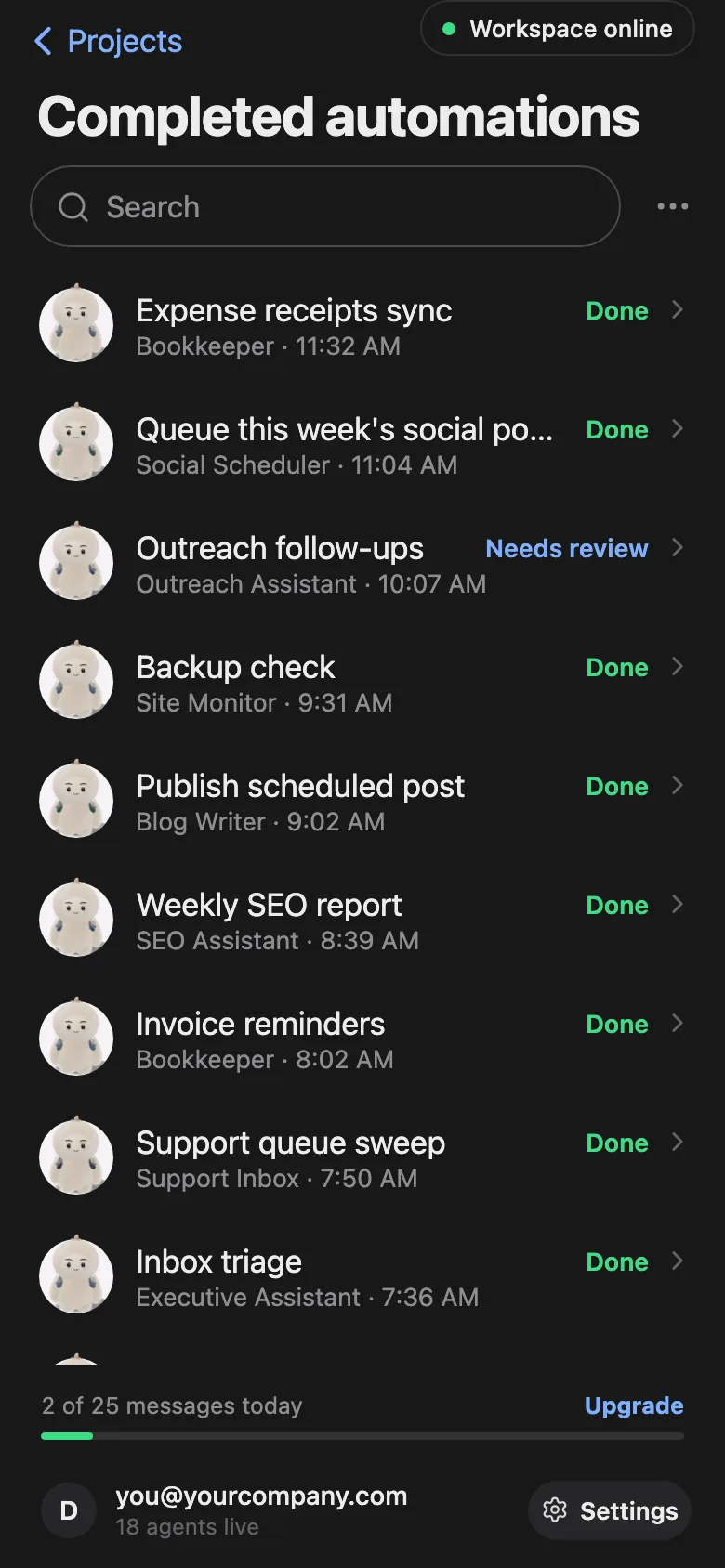
Examples from the ShiftHands demo workspace.
Prefer one screen for every agent and job? See the ShiftHands AI agent dashboard.
The plan sets how many automations you keep and how often they can run.
2 automations at a time. Each runs at most once a day: Daily, Weekdays, Weekly or One time.
No plan cap on automations. Adds Hourly and Every few hours (2, 3, 4, 6, 8 or 12 hours).
Fair-use caps, your AI provider’s limits and what your Mac can handle.
Full plan details are on ShiftHands pricing.
Yes, if the Mac that hosts them stays on, awake, connected and running ShiftHands. It is your computer doing the work, so it has to be available.
A Mac mini or Mac Studio left on runs automations on time, even at night.
Agents pause. Scheduled work missed while the Mac slept runs when it wakes.
Nothing runs until the Mac is back. Messages you send meanwhile are delivered when it reconnects.
Planning a dedicated machine? Read the Mac mini AI agent setup guide.
Approvals and browser
Unattended doesn’t mean unrestricted. A scheduled run can stop and wait for you.
Approval behaviour depends on each agent’s settings. Not every file change or send is gated.
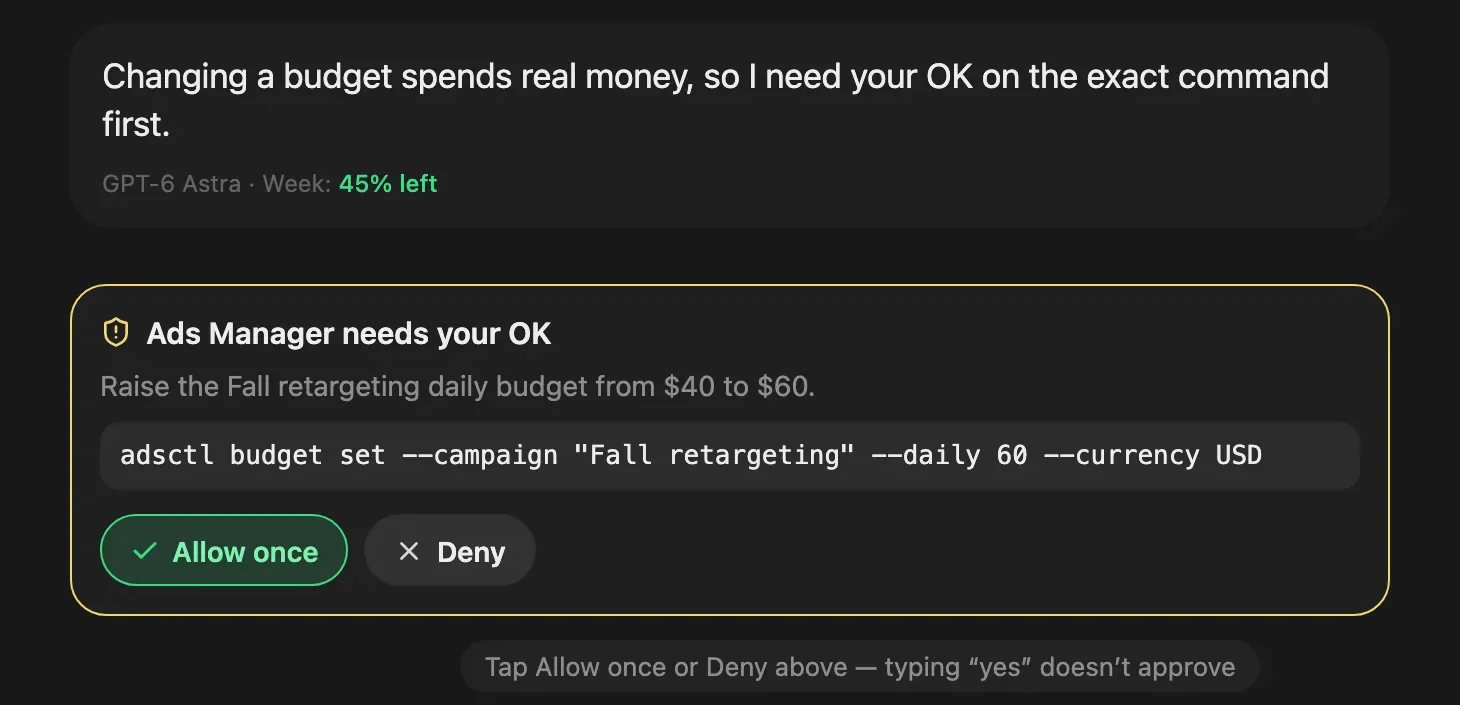
An approval card from the ShiftHands demo workspace, with made-up names.
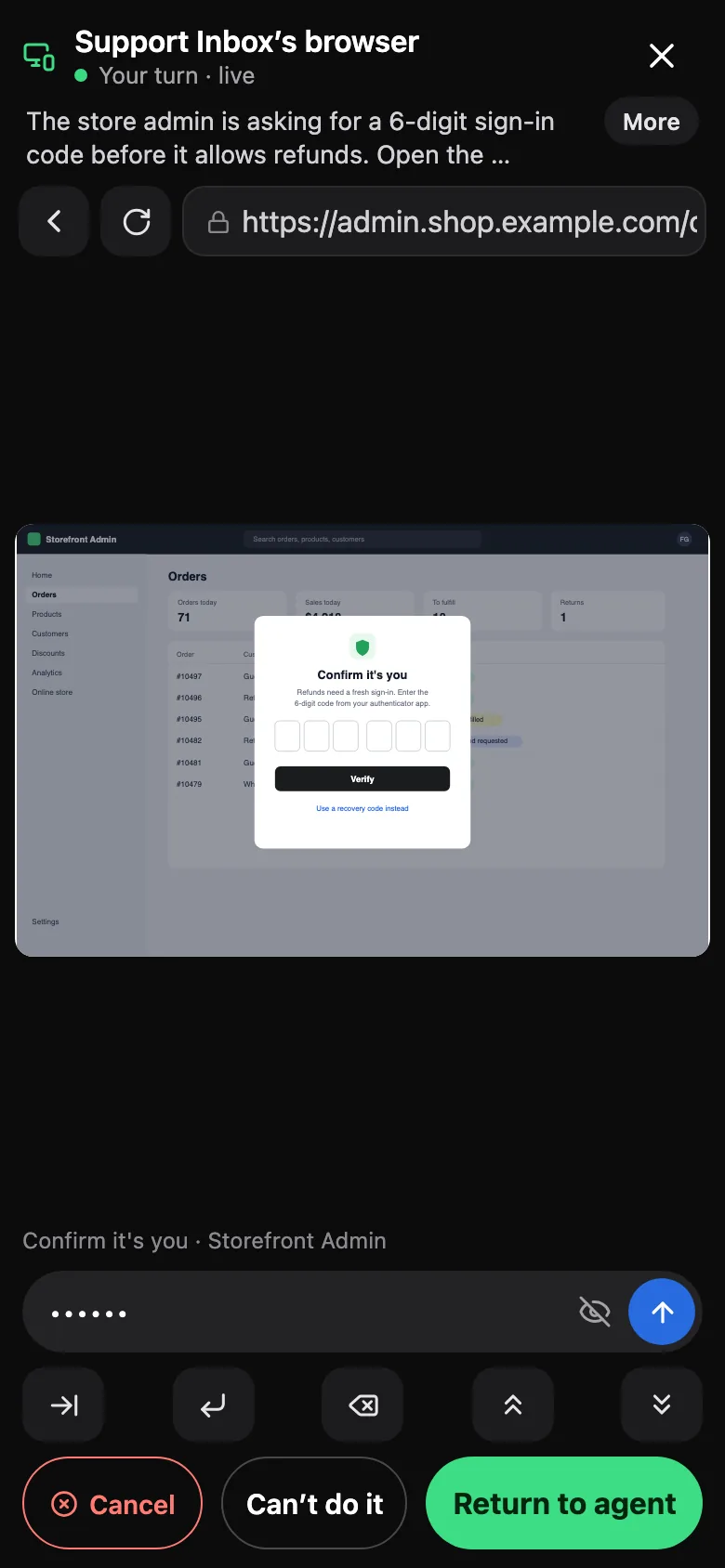
Phone review
Open shifthands.com in your phone’s browser and sign in. Your Mac still runs the agents; the phone is where you check in.
More on this in our guide to manage AI agents from your phone.
ShiftHands doesn’t sell model credits. Scheduled work uses the AI accounts you connect.
Sign in with Claude or ChatGPT, or add an API key. Each provider’s limits and pricing apply.
More frequent or longer jobs use more of your provider’s allowance.
On Free, automation runs don’t count toward the 25 agent messages a day. Only messages you send do.
It has to stay on, which costs power. Heavy schedules can slow other work on the same Mac.
No cost savings are promised; what you spend depends on your provider, schedule and Mac.
It suits repeatable work on your own Mac, with output a person can check.
Scheduling fits if
Look elsewhere if
On Free, at most once a day: Daily, Weekdays, Weekly or One time. Pro adds Hourly and every 2, 3, 4, 6, 8 or 12 hours.
Two at a time, along with 25 agent messages a day, 1 project and 3 agents.
No. The Free limit counts messages you send. Automation runs, approvals and an agent’s own follow-up steps don’t count.
The agent can’t run while the Mac sleeps. Missed scheduled work runs when it wakes.
It depends on that agent’s settings. With “Ask before risky steps” on, it pauses for your OK on risky commands. It can still browse and send messages on its own.
Yes, with Ego Lite installed. Running browser jobs have Watch live, and you can take over for a sign-in.
Yes. Sign in at shifthands.com in your phone’s browser to see results and answer flagged commands.
Not on top of your plan. Runs use your own AI provider account, under its pricing and limits.
Download the Mac app, pick an agent and set when it runs. Check the result in its chat.
Needs an Apple-silicon Mac (M1 or newer) with macOS 13 or later. For an always-on host, see the Mac mini AI agent setup guide.
Screens and video come from the ShiftHands demo workspace with made-up names. Features and prices were checked on October 27, 2026 and can change.